Embedded AI that finds the fix that already exists
An AI feature in an enterprise asset management (EAM) platform that finds similar past failures, so maintenance teams can diagnose faults without asking the experts. It shipped and is live.
Planners and technicians on the factory floor, not very tech-savvy
TL;DR
Problem
Past failures are hard to search, valuable knowledge stays hidden, and expertise sits with a few individuals.
Solution
An AI feature that finds similar past failures and groups them by cause, solution and links to earlier records.
Outcome
Faster fault diagnosis and less reliance on individual experience. Shipped and live.
Three design decisions
Placement
Where it lives
Placed in the existing sidebar, after the current options
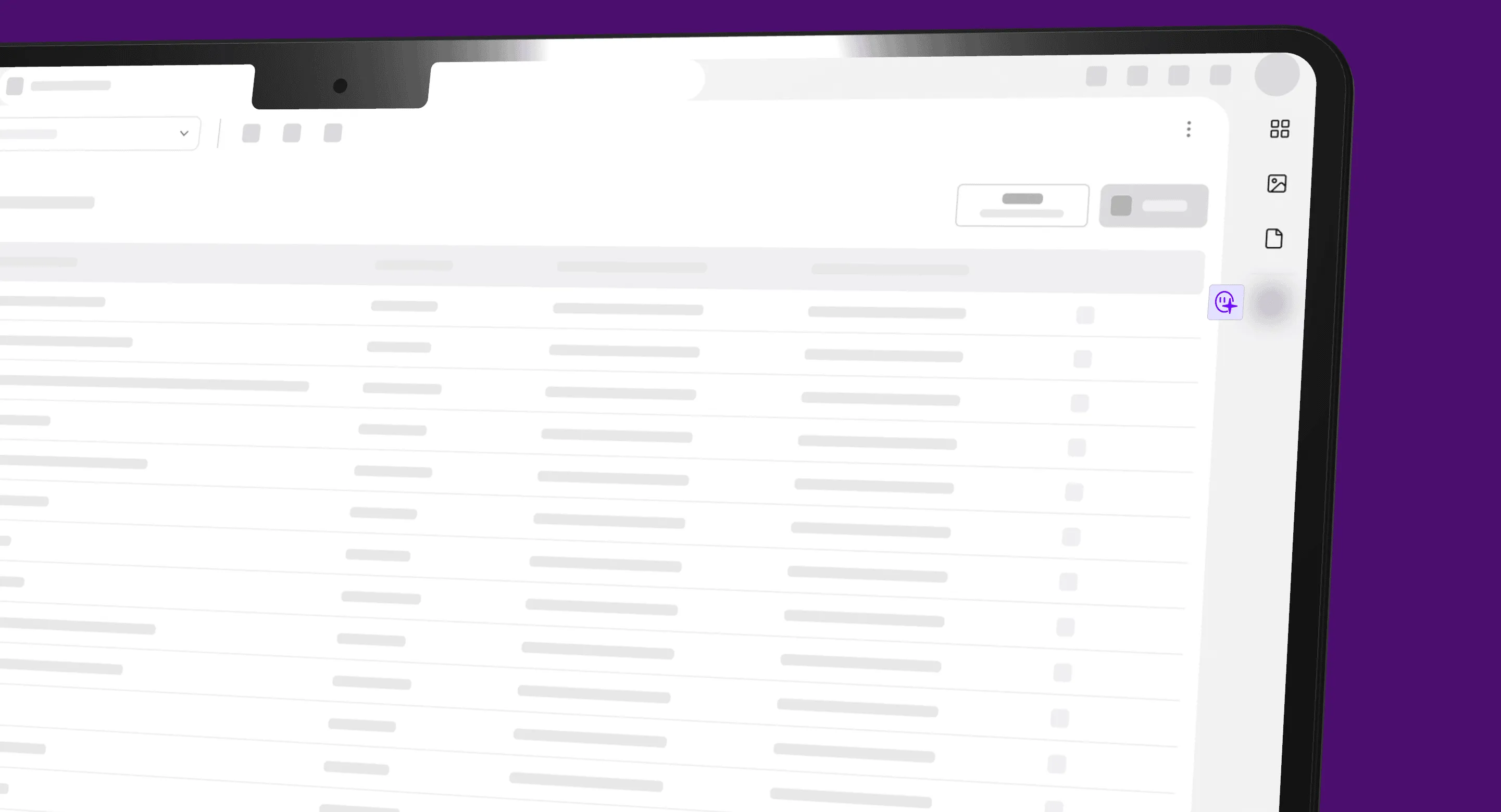
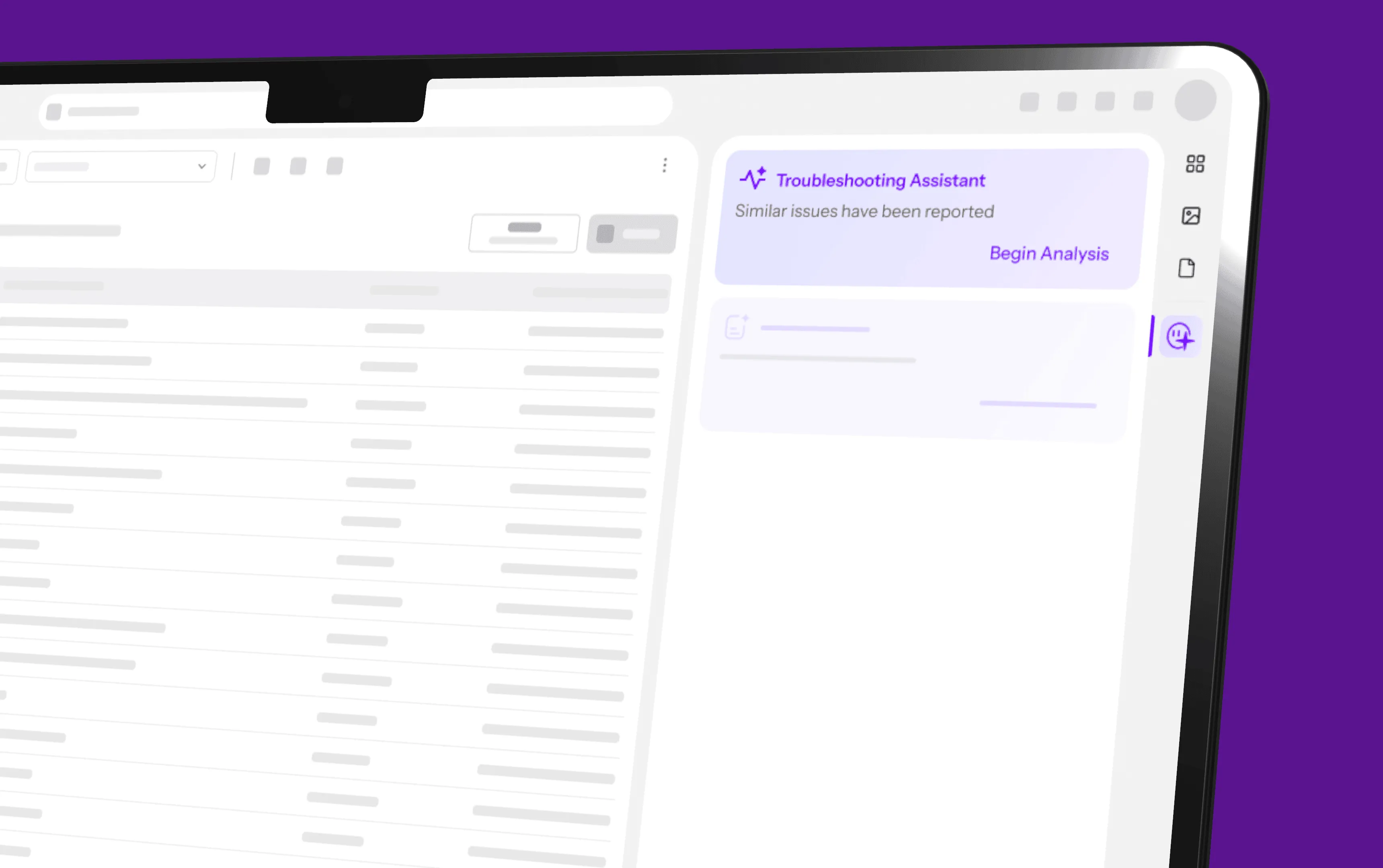
The feature sits in the record's existing sidebar, after the options users already know (widgets, images, documents). It sits after a divider and has an animated icon.
Sidebar positions considered
Position
What I found
Outcome
At the top
People would click it by mistake when reaching for widgets.
Rejected
At the bottom
It wasn't prominent enough.
Rejected
After a divider, below the existing options
Tested internally with stakeholders.
Chosen
Trigger
When it runs
Analysis starts on a single click, not automatically
Users start the search for similar failures with one Start analysis button. Running an LLM is expensive, so a deliberate click means the model doesn't run every time someone moves between records. The trade-off is one extra click before results appear.
Visual language
How it looks
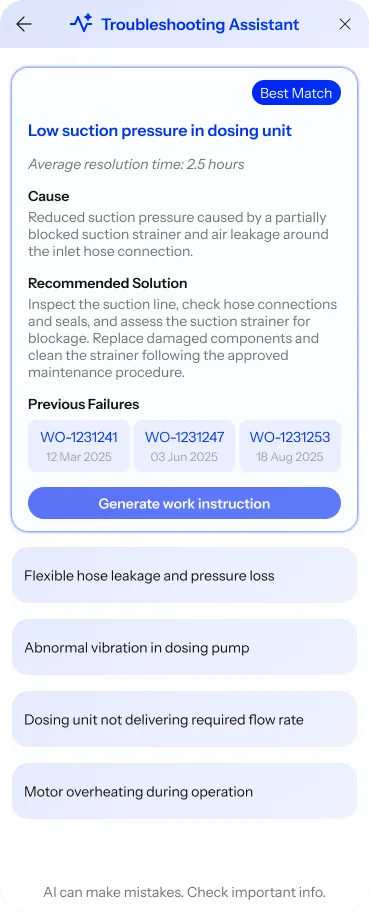
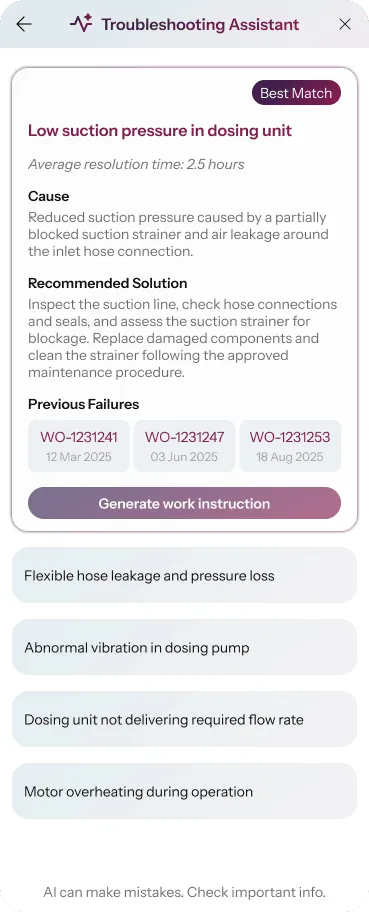
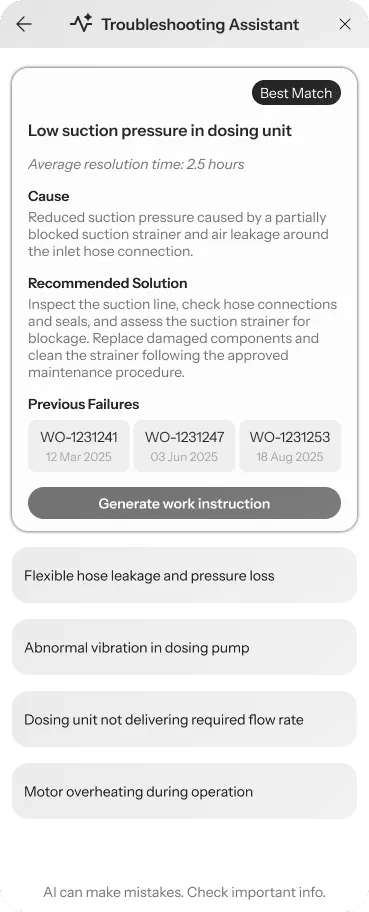
Dedicated AI colours, always paired with icons and words
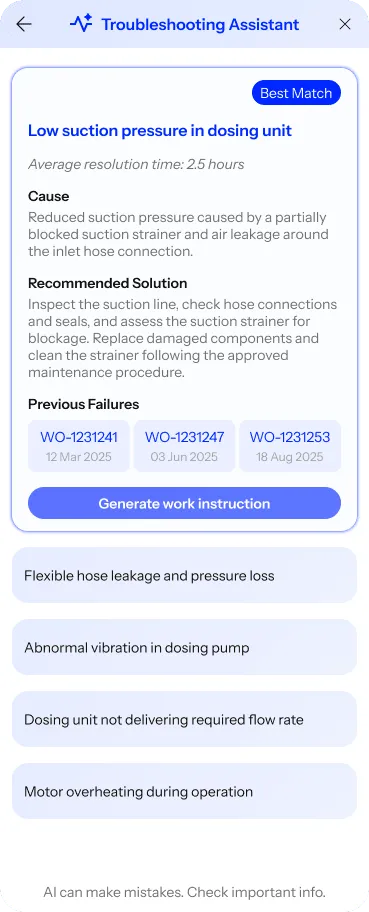
AI-generated content gets its own colour treatment, so it is clear at a glance that the feature is AI and can make mistakes. Colour is never the only signal: an AI icon and a warning that results may contain mistakes carry the same meaning. Colour pairs were checked with contrast checkers against WCAG 2.2.
Protanopia
Deuteranopia
Tritanopia
Achromatopsia
AI essentials
Knowing it's AI
Colour and icons, plus a warning that AI-generated results may contain mistakes.
When the AI is unsure
Only results with a relevance score are shown.
Human approval
The user decides which past issue is most relevant and generates work instructions from that card.
Undo and correct
The user chooses whether to move forward through the suggestions and whether to generate work instructions, and can stop or correct at any point.
The flow in three screens
A prompt appears
The assistant offers help when it spots similar failures
While the user works in a work order, a notification beside the assistant icon says similar issues have been reported. Nothing runs until they choose Begin Analysis.
The best match, with evidence
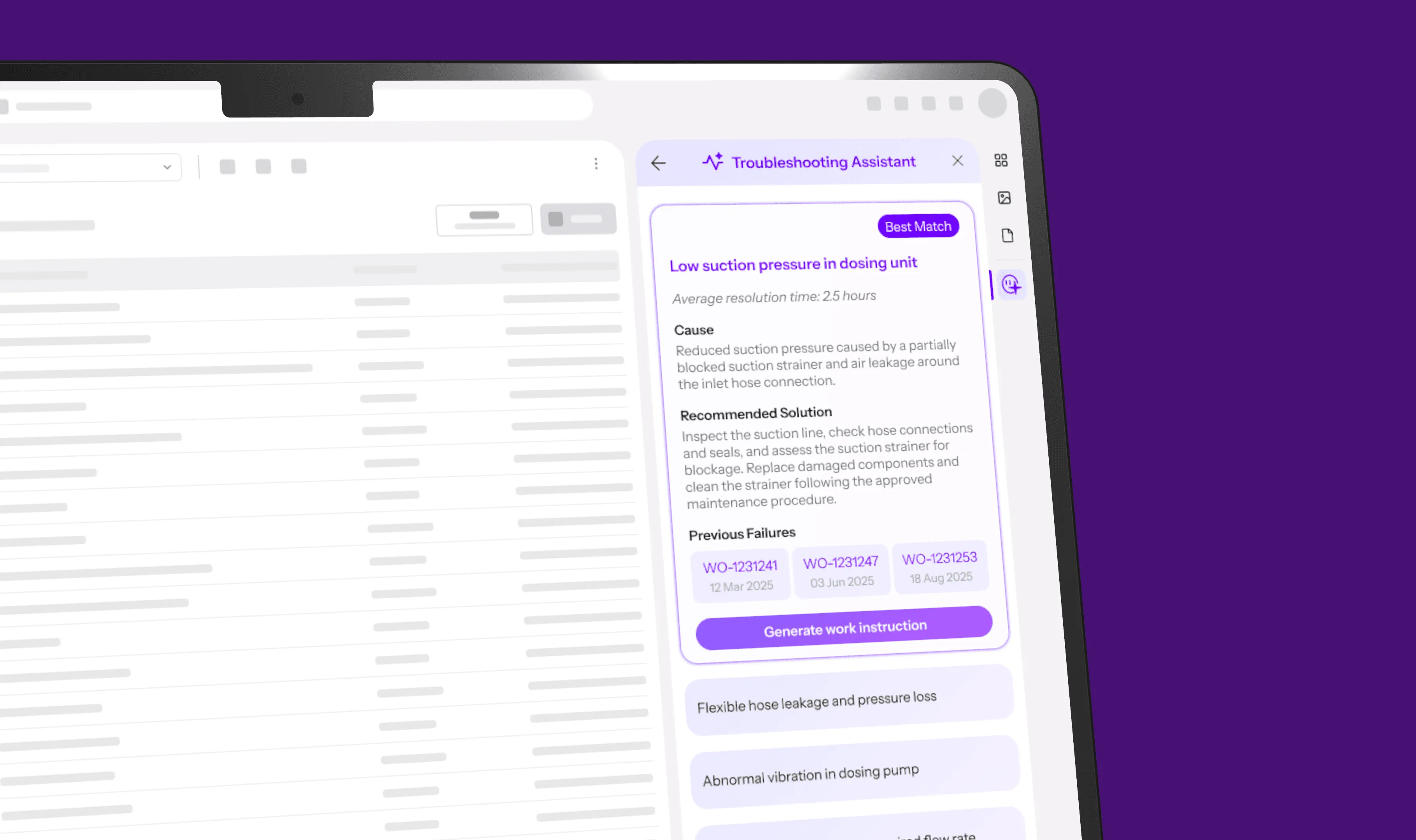
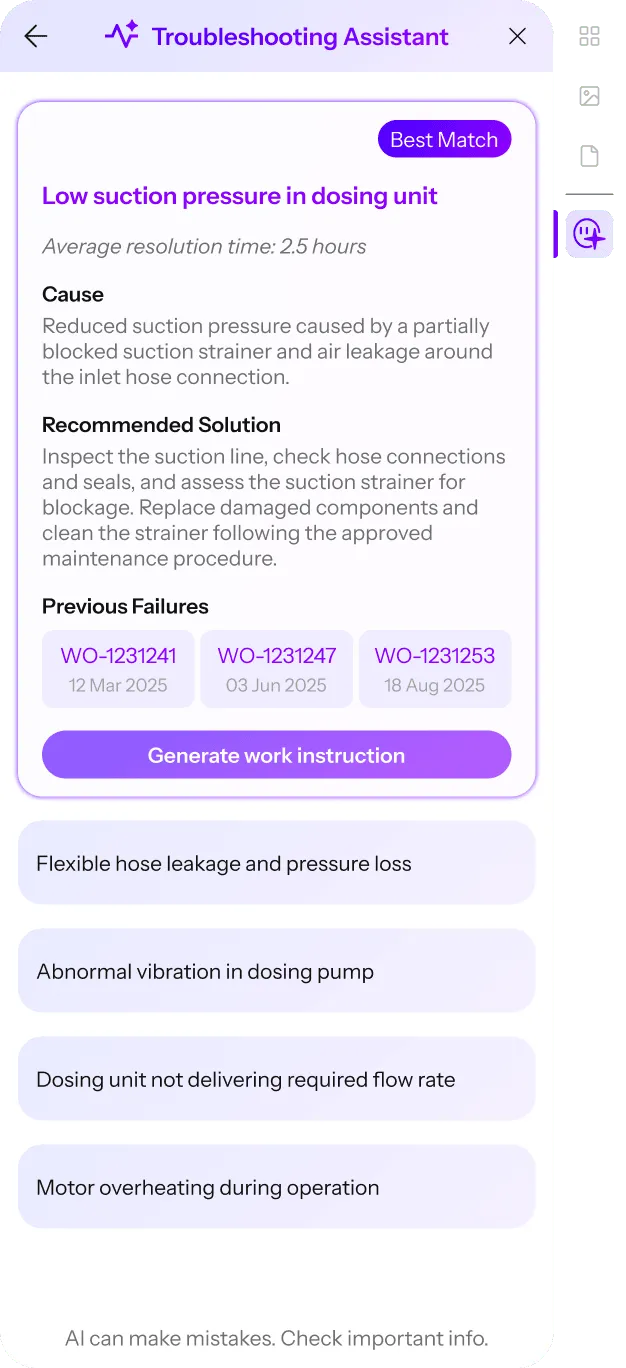
Out of 5 results, the best suggestion is shown first
The panel opens on a Best Match card: the issue, its likely cause, the recommended solution and chips linking to previous failures by work order and date. From here, the user can press Generate work instruction. The four related symptoms sit below, along with a reminder that AI can make mistakes.
Reviewed, then added
Generated steps reach the work order only once the user confirms them
Generate work instruction opens a modal marked AI generated, with five maintenance steps from preparing the equipment to operational testing. The user can edit them or confirm. Confirmed steps fill the Work Instructions card in the work order, and the assistant stays docked on the right, so past failures and related symptoms are still in reach.